Who Unfollowed You After You Posted on Instagram
Instagram won't name who left after your post, but two export snapshots compared will. Here's how the before-and-after method works and what the list actually tells you.
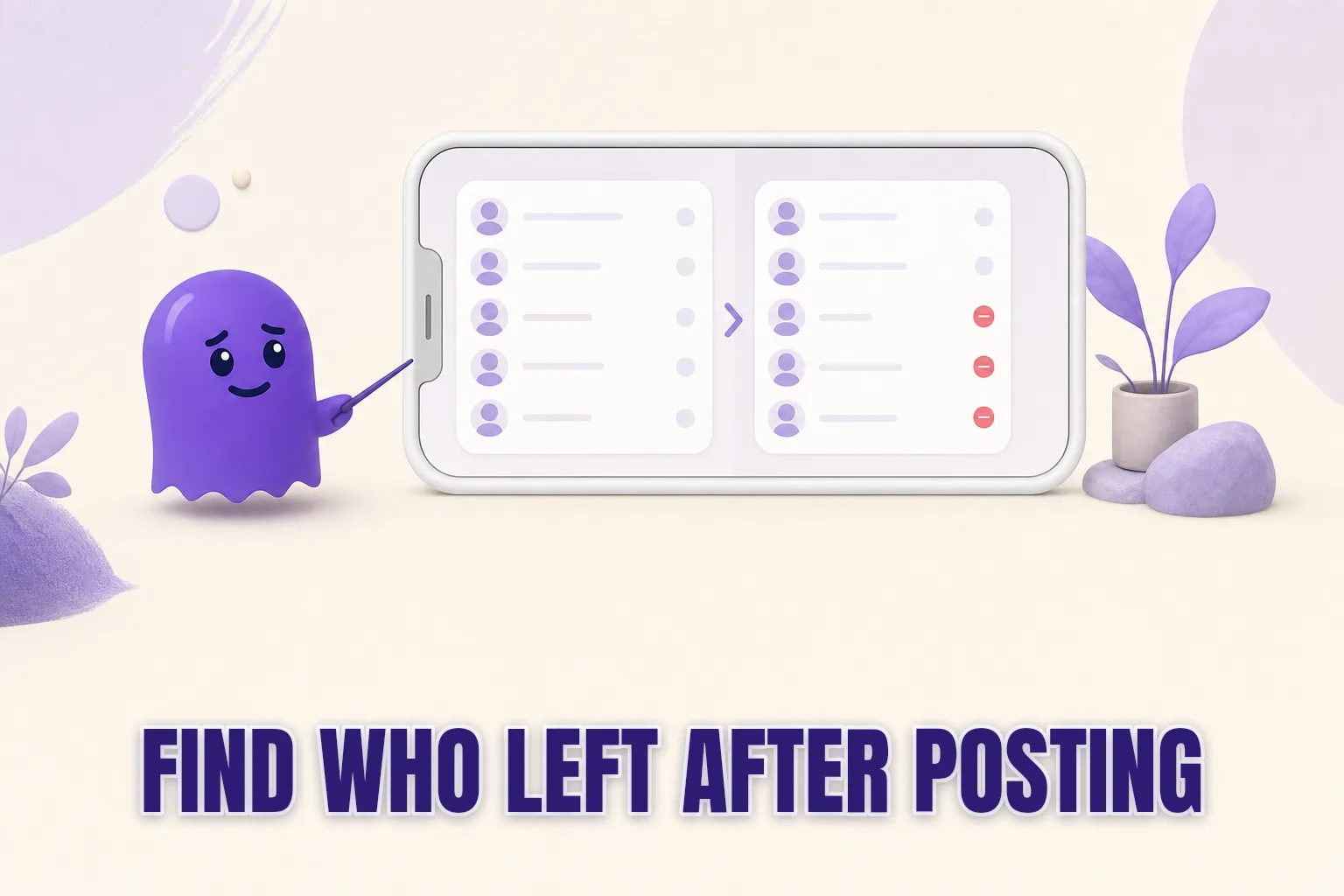
Posting something and then watching the follower count tick down is a specific, unnamed feeling. You know something moved, but Instagram will not tell you what — or who. The short answer: Instagram never names the accounts that left, but your own data export will, as long as you have two snapshots taken around the time of the post.
The rest of this post explains how that before-and-after comparison works, what it can and cannot tell you, and why the two-snapshot method is the only reliable way to identify post-triggered unfollowers.
Why Instagram will not name who left
Instagram does not notify you when someone unfollows, and the app provides no list of departed accounts. In Professional Dashboard, accounts on creator or business mode can see a net follower change over a rolling period — but it is always a number, never a roster.
That silence is by design. Instagram treats unfollowing as a private act, similar to the way it treats profile views. The name belongs to the person who left, not to you.
There is, however, one place where the names do appear: your own data archive. Instagram includes a timestamped list of everyone who currently follows you in the connections/followers_and_following/followers_1.json file inside your export ZIP. If an account is present in an older export but absent from a newer one, they left somewhere in the window between the two.
How to find out who left after a specific post
The method requires two exports — one saved before (or close to the time of) the post, and one requested after enough time has passed for the reaction unfollows to settle.
- Take a baseline export before publishing. Request one in Instagram settings: Settings and activity > Your activity > Download your information, in JSON format.
- Publish your post and wait 24 to 48 hours.
- Request a second export. This one captures the follower list after the post.
- Compare the two follower files. Accounts present in the first but absent from the second unfollowed you during that window.
If you already have an older export saved — even one from weeks ago — you already have a baseline. The comparison will show every account that left since then, not just those triggered by the last post. A shorter window gives you a cleaner signal.
For the step-by-step details of requesting and downloading the archive, the Instagram data export guide covers the full process including format selection and common delays.
What the comparison actually reveals
A before-and-after comparison names who left. It does not explain why.
It also cannot tell you whether an account unfollowed because of the post or for a completely unrelated reason — a periodic clean-up, a long dormant follow that finally got cleared out, or an account that deactivated temporarily. Most of what shows up in a post-triggered diff is unrelated to the content.
The accounts worth paying attention to are the ones who were genuinely engaged — regular likers, commenters, someone who replied to your stories — and who disappeared in the same narrow window as a specific piece of content. That pattern means something. The rest is background churn that happens every week regardless of what you publish.
The data shows you who. The judgment about whether it matters is still yours.
Comparing the options
| Method | Names individual accounts | Tied to a specific time window | Time to result |
|---|---|---|---|
| Instagram Insights / Professional Dashboard | No — net change only | Approximate rolling periods | Immediate |
| DIY JSON export comparison | Yes | Yes, if you have two saved exports | Slow — manual file diff, hours of work |
| hooleft.me | Yes — instant visual list | Yes — snapshot history with timestamps | Minutes |
The DIY route is real. If you have both exports open and your follower list runs to a few hundred accounts, a manual comparison is manageable. For larger accounts, or if you want to check this regularly after every post, the manual method scales poorly.
How hooleft.me handles the comparison
hooleft.me reads your Instagram data export and shows who left without you opening a JSON file. Upload your archive ZIP and the tool returns a list of accounts that were in your last snapshot but are absent now, with follow timestamps where the data includes them.
Pro adds snapshot history: hooleft.me stores each upload so you can compare any two dates — before a post, before a content pivot, before you ran a giveaway. Each time you upload a new export, the diff against your previous snapshot is ready immediately.
The free tier processes a single upload and shows the first three unfollowers — enough to confirm the method is working before deciding whether a paid plan makes sense for you.
Nothing requires your Instagram password. hooleft.me reads only the file Instagram sent you. Once you close the session, no data is retained.
How often post-triggered drops happen
Losing a few followers after posting is normal at every account size. The content that reaches existing followers and the content that draws in new ones via Explore do not always overlap. A post that brings in a wave of new followers from a wider audience may prompt a smaller number of existing followers to quietly leave because the topic does not match what they originally followed you for.
That churn is not necessarily a signal the post was wrong. The full explanation of losing followers after posting covers the patterns in depth. The useful number to watch is not whether any particular post caused some unfollows — most posts do — but whether the rate is increasing over time, and whether the accounts leaving are ones whose engagement you valued.
For context on how follower changes look across longer timeframes, the guide to comparing Instagram followers between two dates shows what the snapshot method reveals when you zoom out to weeks or months.
Taking a baseline before your next post
If you want a clean before-and-after for your next piece of content, the practical move is to request an export now, before publishing. Archives typically arrive within a few hours. Having a saved copy means you have a reference point regardless of what the count does afterward.
Upload the ZIP to hooleft.me before you post, then upload a second one a day or two after. The comparison will show exactly which accounts left in that window.
If you publish regularly, Pro keeps every upload as a named snapshot so you can run comparisons across any interval without re-requesting an export each time.
FAQ
Can Instagram tell me who unfollowed me after a specific post?
No. Instagram shows a net follower delta in Insights but never names individual accounts. You need two data exports — one from before the post, one from after — to see exactly who left.
How long after posting should I wait before requesting the export?
Give it 24 to 48 hours. Most unfollows triggered by a post land within the first day, though the count can drift a few more days as the content reaches late viewers.
What if I do not have an export from before the post?
You can only see who unfollowed since your earliest saved export. Going forward, taking a snapshot before a big post gives you the cleanest before-and-after comparison.
Does comparing exports distinguish between someone who deactivated and someone who chose to unfollow?
Both show up as absent from the newer export. The data does not tell you which happened — Instagram does not separate the two cases in the export files.
Reading the list
The names in your comparison are data. Whether any of them matter depends on who they are and when they left. A few accounts disappearing after every post is background noise. A cluster of engaged followers dropping off after one specific type of content is a signal worth understanding.
Upload both exports to hooleft.me and run the comparison. The list is quick to generate and honest to read — and the truth is usually quieter than the follower count suggests.
Related
How to Audit Which Apps Have Access to Your Instagram
Learn how to find, read, and audit the list of apps connected to your Instagram account — and spot which permissions put your account at risk.
How Many Accounts Can You Follow on Instagram
Instagram has a hard following limit of 7,500 accounts, plus informal daily rate limits that apply long before you reach it. Here's what the limits are and how to stay safe.
How to Compare Instagram Followers Between Two Dates
The only way to see who left your Instagram between two specific dates — how two data-export snapshots work, what makes the manual diff difficult, and how hooleft.me automates it.
See who left.
hooleft.me compares your own Instagram export and names the accounts that stopped following you. No password, and no card to start. Pro is $49 a year for the full list and snapshot history.
Start free