Instagram Data Export Guide: Step by Step (2026)
A calm, complete walk-through of the Instagram data export. Request it, download it, open it, and read what's inside — no apps, no passwords shared.

If you want a full copy of everything Instagram holds on your account, the answer is the data export — a built-in archive you can request directly, no apps required. This Instagram data export guide walks every step, from the request screen to reading what is inside the ZIP, in calm and complete detail. We built hooleft.me to read these archives for you, so we know the flow from both sides.
The export is the same source of truth Instagram uses internally. Once you have it, you control it. You can do the comparison work by hand with a JSON viewer, or you can hand the ZIP to hooleft.me and skip the spreadsheets — both routes use the same underlying file.
[!info] Quick answer: Requesting your Instagram data export takes about 2 minutes — Meta then emails you the archive within a few hours. To find your unfollowers from it without parsing JSON by hand, upload the ZIP to hooleft.me and you'll see the list in seconds. No password required.
What the Instagram data export actually contains
The Instagram data export is a downloadable archive of everything your account has touched. Think of it as a snapshot — your followers and following lists, your DMs, your posts and stories, your saved items, your account history, your login activity, and the ads metadata Meta has accumulated against your profile.
It comes in two formats. JSON is structured data: plain text files, easy for software to read, ideal if you plan to feed the archive into a tracker or run your own script across it. HTML is a set of styled webpages: open them in a browser and you can scroll through your history like a private website. Both contain the same information.
There is no paywall. There is no quota. Meta gives every user the export under data-portability rules in most regions, and offers it globally as a baseline product feature. You can request it as often as you need.
The archive is generated on demand. When you ask for it, Instagram queues the job, builds the files server-side, zips them, and emails you when the download is ready. The whole flow is private to your account: no follower, friend, or contact is notified.
One detail worth knowing up front: the archive is a snapshot, not a live feed. The followers list inside reflects the moment Instagram generated the file, not the moment you opened it. If you want to track changes over time, the practice is to keep two exports a few weeks apart and compare them — a single export tells you who follows you now, not who left last month.
Before you start: what to decide first
Two small decisions up front will save you a long wait later.
The first is scope. You can request all available information, or you can pick specific categories — followers, messages, posts, stories, and so on. If you only need to download Instagram data for a specific task (for example, finding who unfollowed you), pick only the relevant categories. A focused export is faster to generate and smaller to download.
The second is format. JSON files are machine-readable and tiny. HTML files include rendered pages with images and styling, which is convenient to browse but produces a much larger archive. If you are not sure, pick JSON — every tracker and script we know of reads JSON, and you can always re-request HTML later.
A practical recommendation: request a minimal JSON export first to confirm the flow works for your account. Once you have the email and the download lands, request a full archive at your leisure.
Step by step: requesting your export
Follow the steps below in order. Screenshots are described in alt text so you can match each panel as you go.
-
Open Instagram on a desktop browser. Sign in to your account at the website. The mobile app supports this flow too, but the desktop view has every option visible on one page, which makes the walk-through clearer.
-
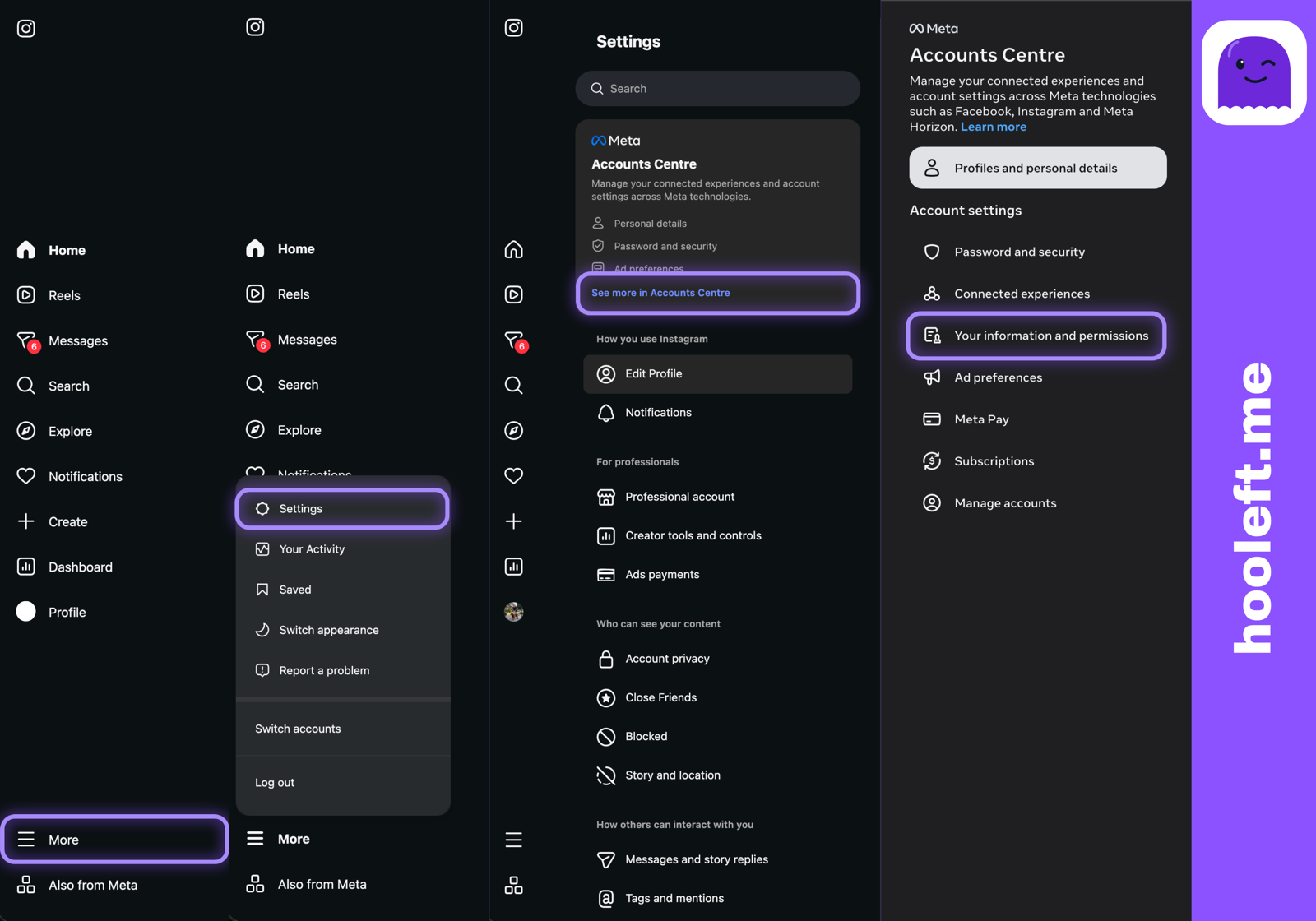
Open the side menu and choose Settings. On the desktop site, the menu appears as a hamburger icon at the bottom of the left rail. Settings opens a full-page preferences view.
-
Navigate to Accounts Center. Inside Settings, look near the top for a link labeled Accounts Center. This is Meta's unified privacy and account control panel, shared across Instagram, Facebook, and Threads.
On desktop, the Accounts Center link sits in the left-hand Settings sidebar — the topmost entry under your profile name.
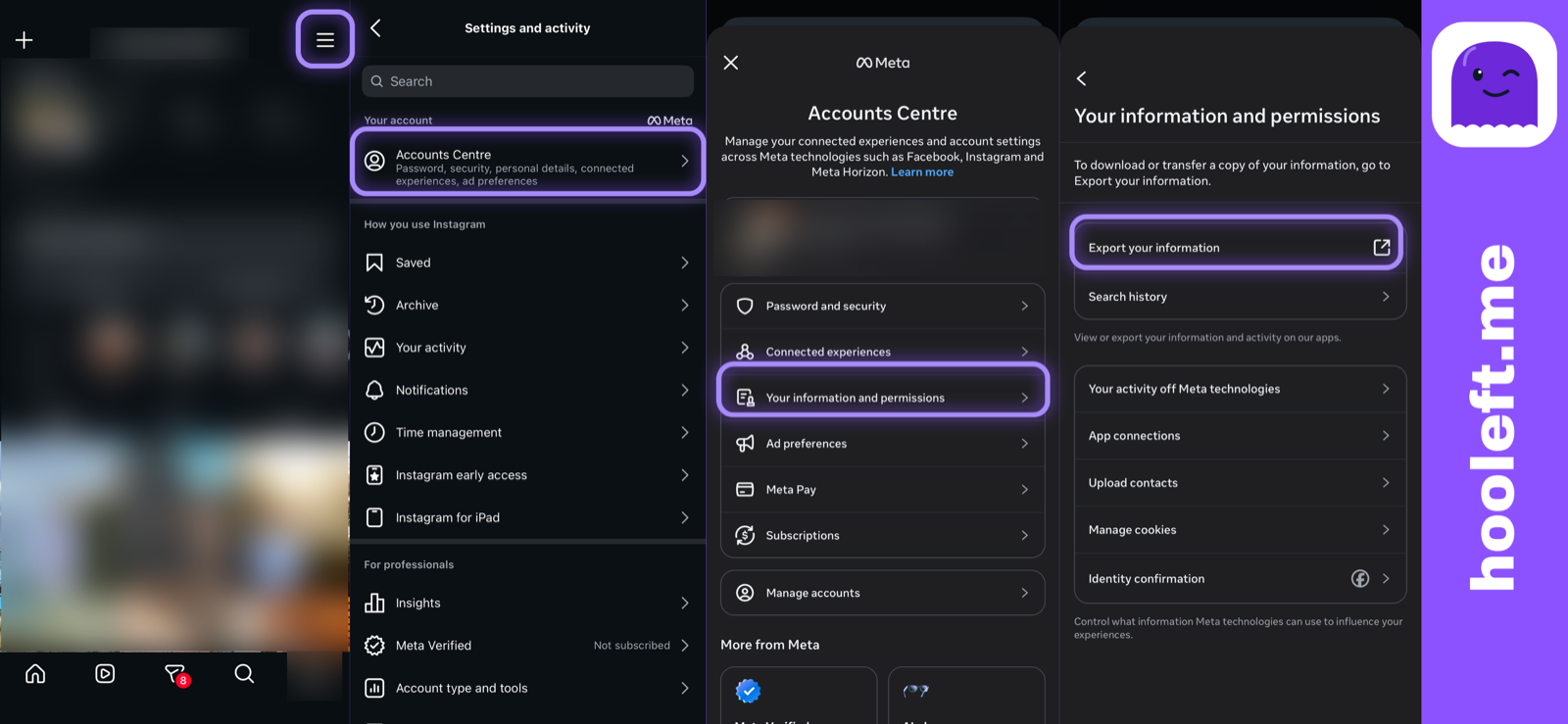
On mobile, open your profile, tap the hamburger menu in the top right, then tap Accounts Centre at the top of the settings list.
-
Choose Your information and permissions. Accounts Center groups options by category. The one you want is Your information and permissions, then the sub-item Download your information.
-
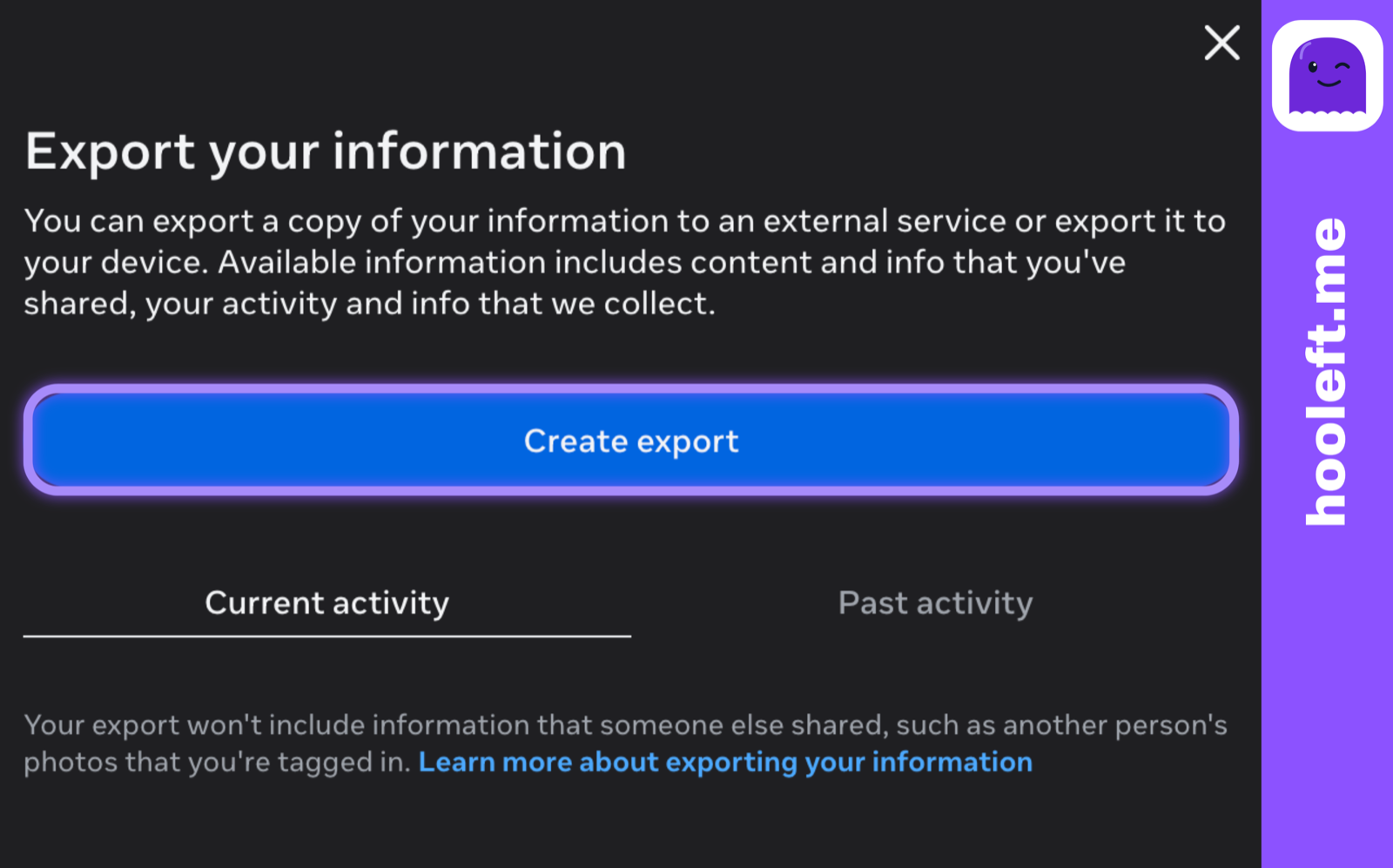
Start a new download request. The next screen, titled Export your information, lists any past requests and offers a Create export button. Click it.
-
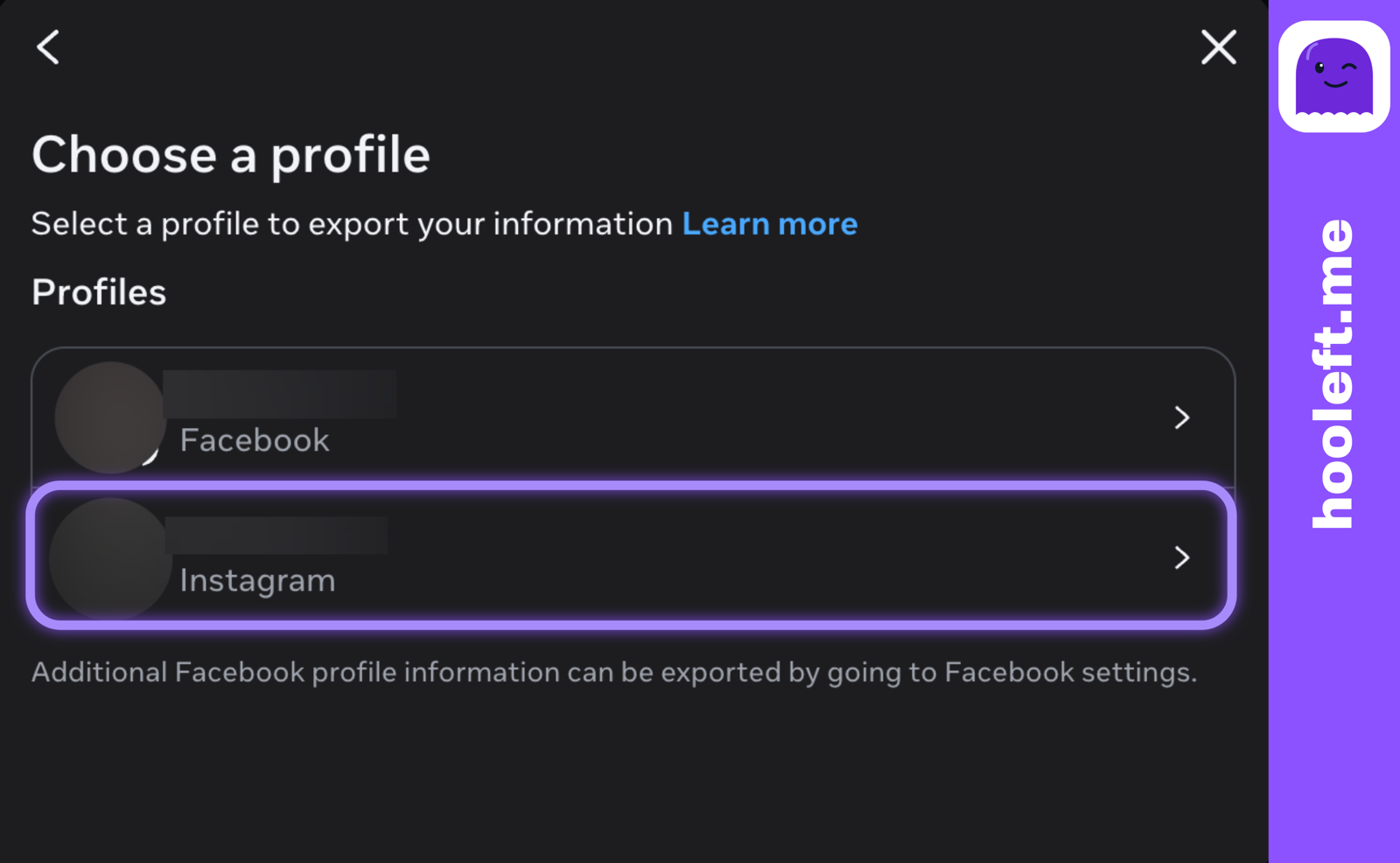
Select the account. If your Accounts Center holds more than one profile, pick the Instagram account whose archive you want.
-
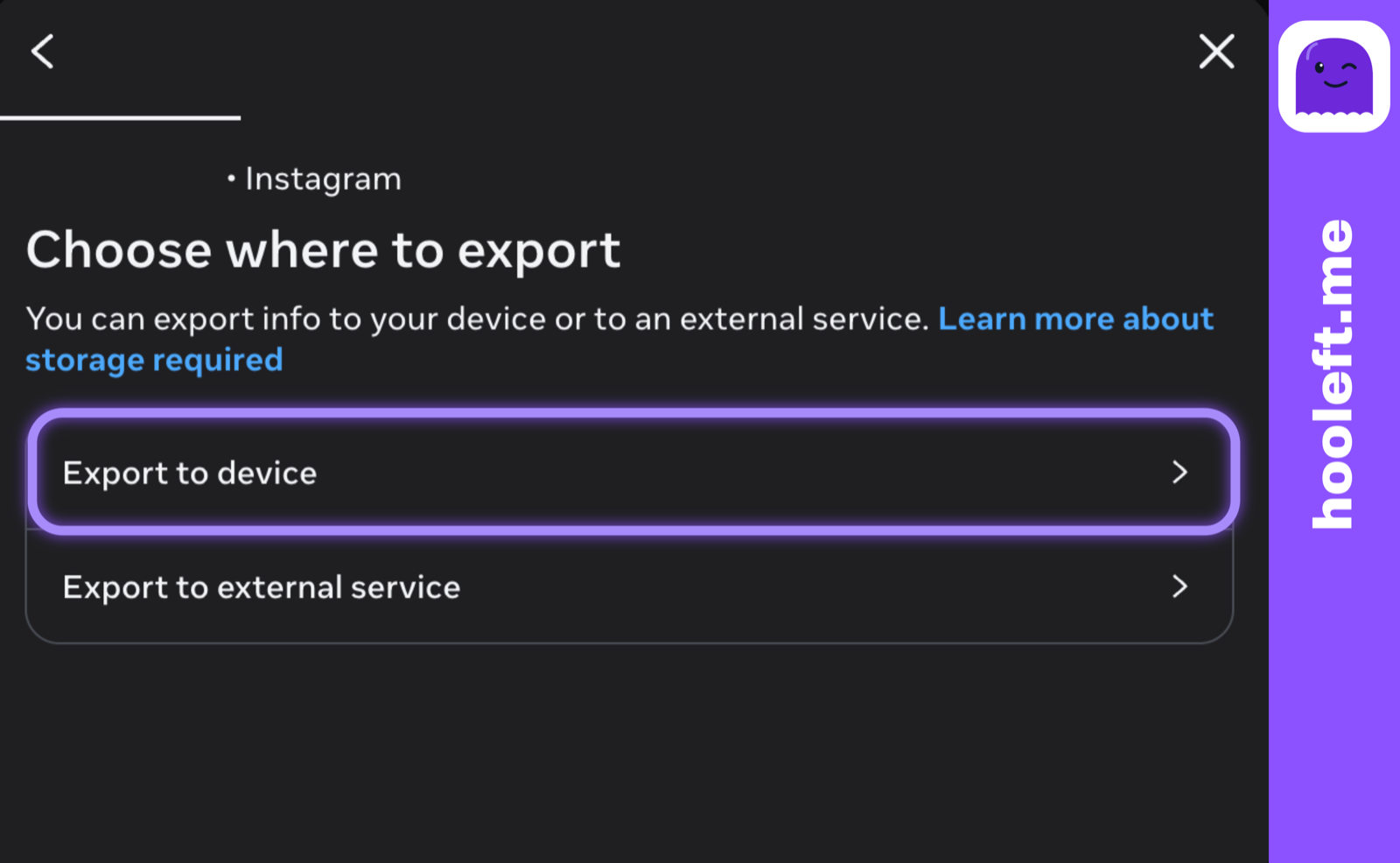
Choose where to send the export. Pick Export to device for a direct ZIP download to your machine. The transfer option uploads the archive to a connected cloud service, which is slower and unnecessary if you just want the file locally.
-
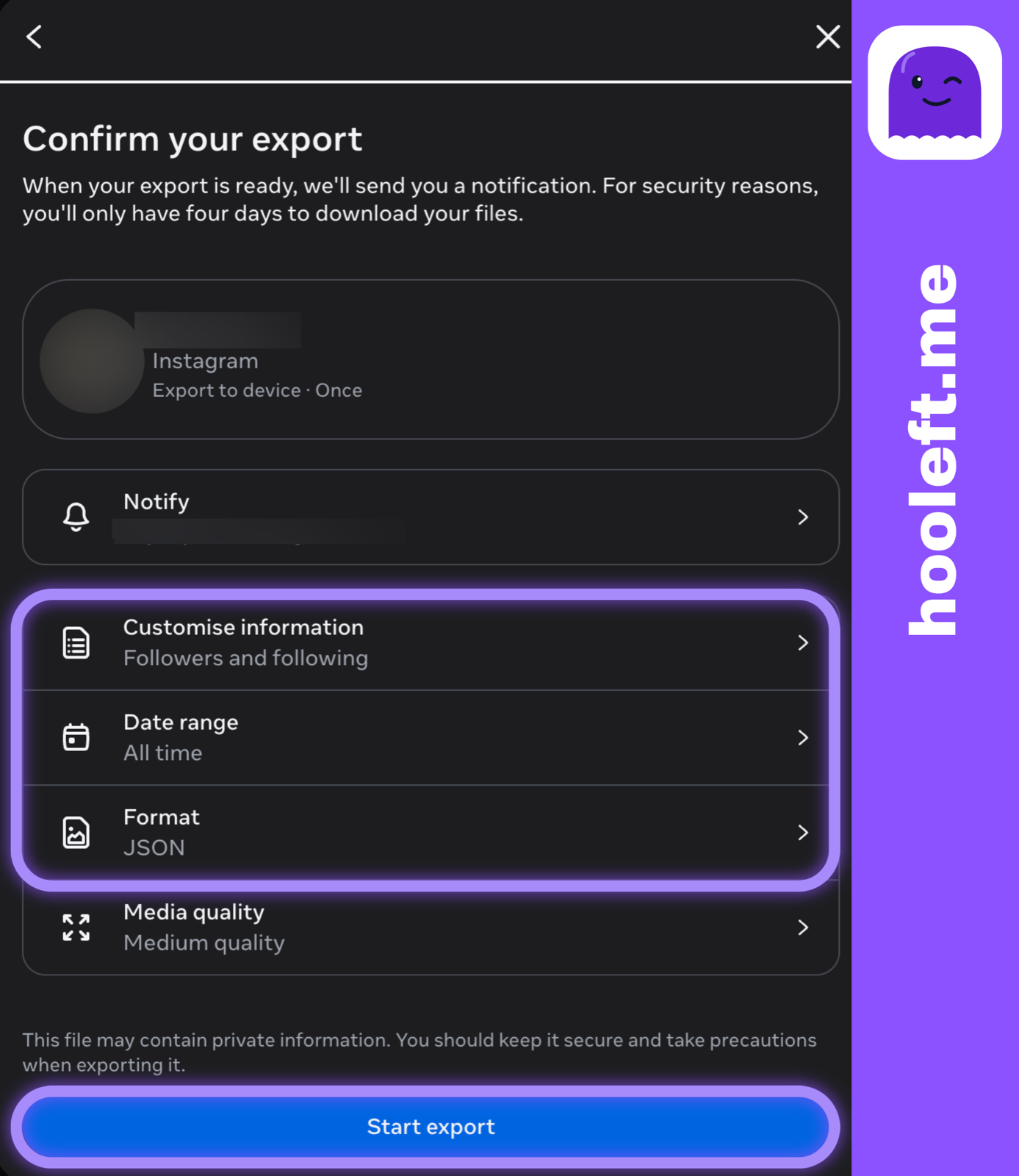
Choose what to include, the format, and the date range. You can pick All available information for a complete archive, or Customise information to choose specific categories. For an unfollower check, the only category you strictly need is Connections (which contains followers, following, blocked accounts, and similar lists). Choose JSON for the smallest, most portable file. Set the date range to All time unless you have a reason to narrow it.
-
Submit the request. Confirm your password if Instagram prompts you, then submit. The screen will return you to the requests list, where your new export shows as In progress.
-
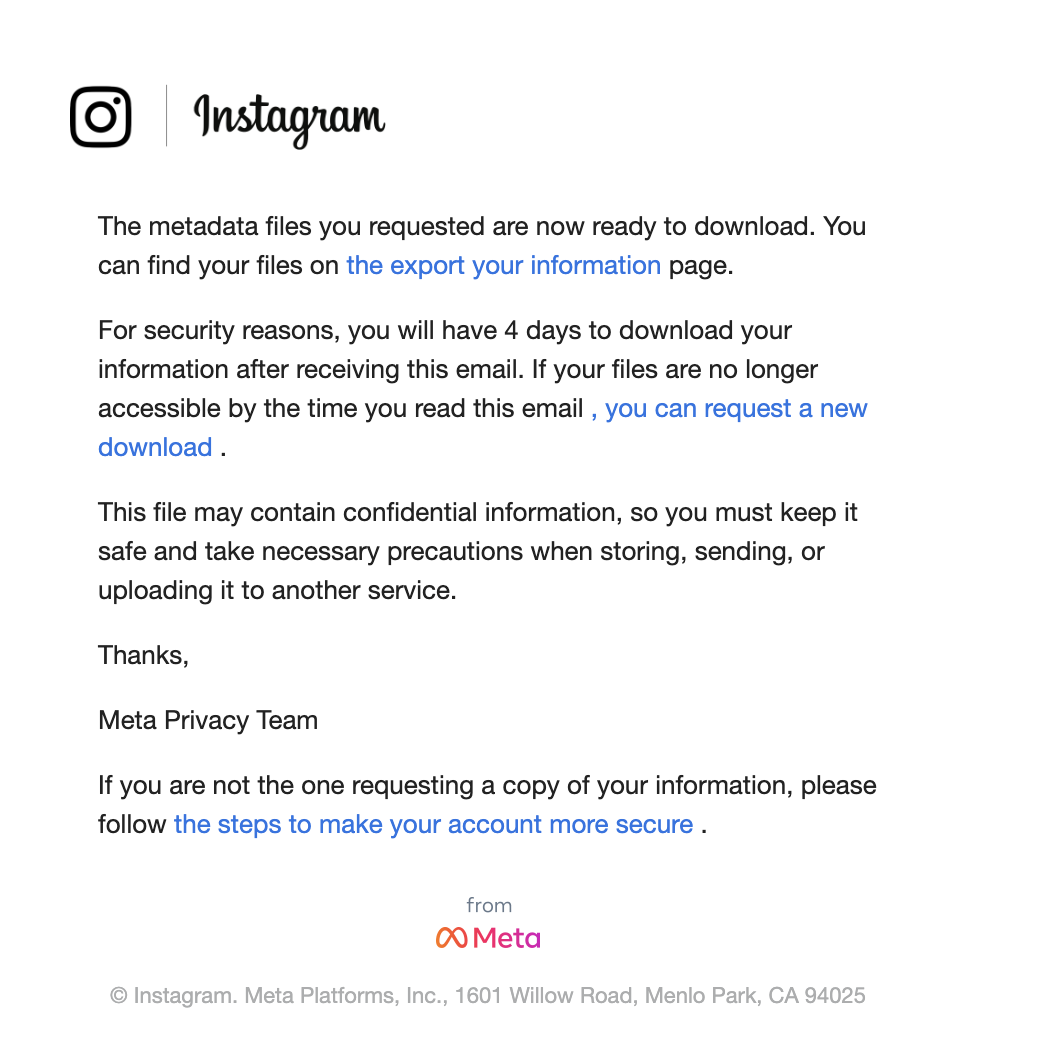
Wait for the email. The link arrives at the email address on file for your account — usually inside 4 hours, occasionally up to 48 hours. Check the spam folder if it does not appear.
After download: unzip and find what you need
When the email arrives, click Download Information. The link opens Instagram, asks you to re-enter your password, and starts a ZIP download. The link expires after 4 days; save the file before then.
Unzipping is the same as any other archive. On macOS, double-click the ZIP and a folder appears next to it. On Windows, right-click and choose Extract All. The result is a folder named after your account.
Inside the folder, top-level directories group the data by category. The names match the categories you selected at request time. Common folders include:
connections/— followers, following, blocked accounts, close friends, hidden storiesmessages/— DM threads, by conversationyour_instagram_activity/— posts, stories, reels, likes, comments, savedpersonal_information/— account history, login activity, contact infoads_information/— advertisers Meta has matched to your profile
If you came for the followers list, open connections/followers_and_following/. Inside you will find files named like followers_1.json and following.json. Each file is a list of accounts with usernames and the timestamp of the follow. Compare two exports taken weeks apart and the difference is your unfollower list.
A note on file structure: very large accounts may see the followers list split across several numbered files (followers_1.json, followers_2.json, and so on). This is Instagram chunking the data for portability, not a missing piece. Read every numbered file in order to reconstruct the full list. Most accounts only need the first file.
The messages/ folder is where DMs live, one subfolder per conversation. Each subfolder contains a JSON file with the message log and a media/ directory for any photos, videos, or voice notes exchanged. Searching across DM history is straightforward once unzipped — point your editor at the messages folder and search the way you would any other directory of text files.
You can absolutely do this comparison by hand — open both JSON files in a text editor, scan the usernames, note who is missing from the newer file. Most people would rather not. That is the gap hooleft.me fills: it reads the same archive instantly and shows the names without a JSON viewer.
Approach comparison
Different ways of getting at your follower history have different trade-offs. The table below is the short version.
| Approach | Account risk | Reading your own data | Speed | Cost |
|---|---|---|---|---|
| Password-based app | High | No (scrapes live) | Real-time scraping | 5 to 15 dollars per month |
| Browser extension | Medium | Inconsistent | Real-time on demand | Free to 5 dollars |
| DIY data export | None | Yes — but tedious (JSON wrangling, hours) | 0 to 48 hours | Free (your time) |
| hooleft.me | None | Yes — instant, visual, with snapshot history | 1 file upload | Free tier + Pro |
The bottom two rows both work from the same Instagram archive — the difference is how long you spend opening JSON files. hooleft.me handles the comparison automatically and shows the names in seconds.
FAQ
Is the Instagram data export free?
Yes. Instagram gives every user a free data archive on request. There is no paid tier and no quota. You can request as many times as you like.
How long does the Instagram data export take to arrive?
Usually under 4 hours, sometimes a few minutes. The hard limit is 48 hours; if you have not received the email by then, request again from a desktop browser.
Which format should I choose — JSON or HTML?
Pick JSON if you plan to upload it to a tracker or read it programmatically. Pick HTML if you just want to scroll through it like a webpage. JSON is the safer default.
Does requesting an export notify my followers?
No. The data export is private to your account. Nobody else sees that you requested it, and nothing is posted on your behalf.
Can I request only part of my data?
Yes. Instagram lets you choose which categories to include — followers, messages, posts, stories, and so on. Selecting only what you need keeps the file smaller and the wait shorter.
Now what
Once the ZIP is on your machine, you own the data outright. You can browse it, search it, store it as an Instagram backup, or hand the connections folder to a tool that turns it into a follower diff.
If JSON files are not your idea of a Saturday, drop the ZIP into hooleft.me and you will see your unfollowers in seconds — same data, less squinting. We parse the archive in your browser, so the file never leaves your device, and there is no password to share.
The same archive feeds a handful of related tasks. If you want a cleaner spreadsheet, the followers list export walkthrough covers the JSON-to-CSV step; for what every folder inside the ZIP holds, how the Instagram data download works goes deeper. To turn that data into a routine, see the 15-minute Instagram audit, how to find inactive followers, or the following list cleanup guide.
If you came here to figure out who left, the next read is our walk-through on finding unfollowers from the same archive. Either way, the export itself is yours to keep — and that is the part that matters.
Related
How to Hide Your Following List on Instagram
The most complete option for hiding your Instagram following list is switching to a private account. Here is what that covers, what it does not, and what else to know.
How to Remove a Follower on Instagram Without Blocking
Instagram has a native Remove follower option that quietly ends a follow without blocking. Here is how to use it, how it compares to the soft block, and when each applies.
How to See Who Unfollowed You on Instagram (Without an App)
Instagram won't tell you who unfollowed — but your own data export will. Here's the safe way to find out, with no password apps required.
See who stopped following, without a password.
hooleft.me compares the export Instagram already gives you. We never log into your account. No card to start, and Pro is $49 a year.
Start freeNo export yet? How to request it from Instagram