How to Use Instagram Insights to Track Follower Growth
A guide to reading Instagram Insights follower metrics — net gains, losses, and reach by source — plus what to do when Insights runs short.
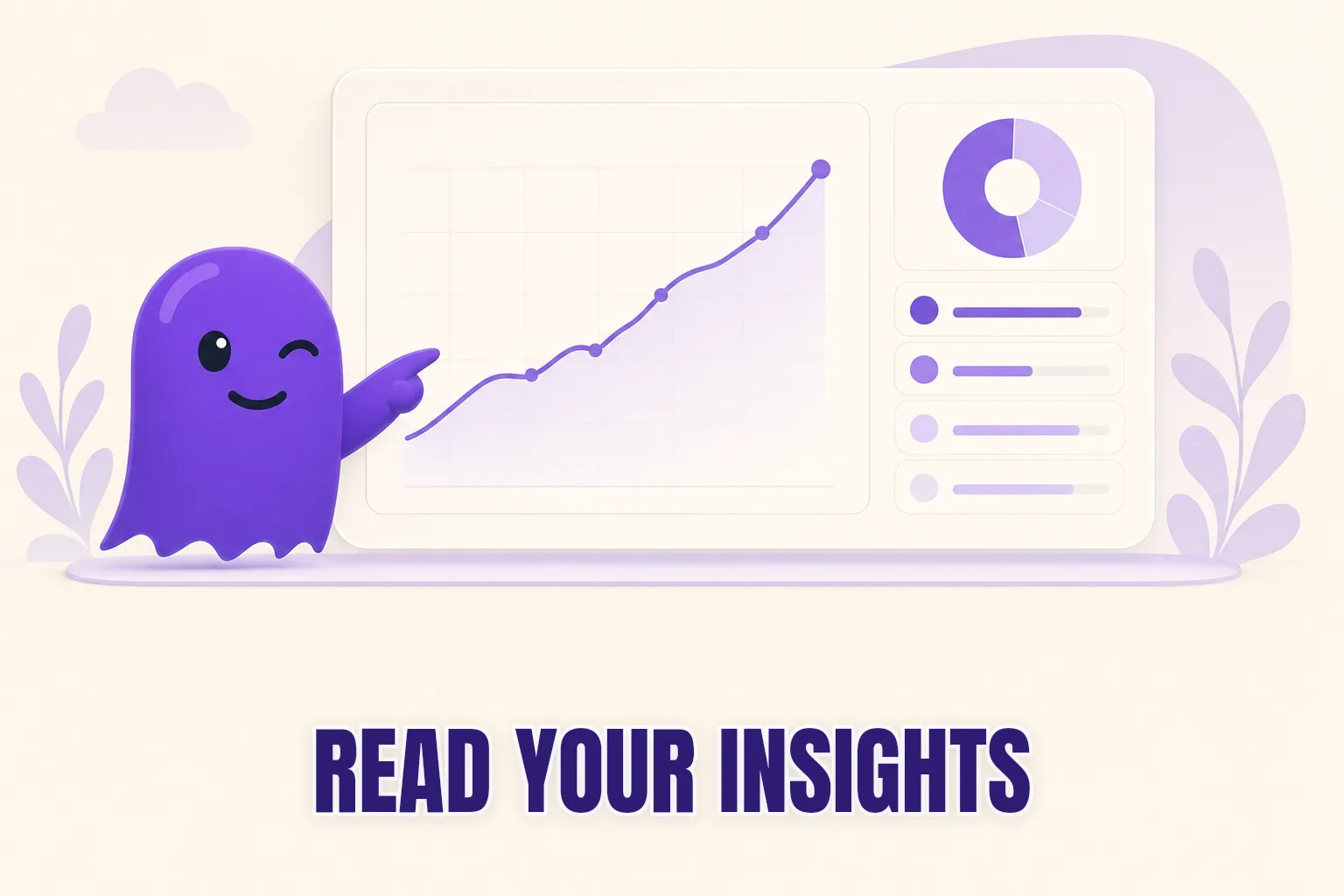
You have been posting consistently and want to know whether your audience is actually growing — not just the total number, but the trend behind it. Instagram Insights gives you exactly that: a follower overview showing net gains, losses, and where those new followers came from. What it does not give you is a list of names. Understanding both what Insights shows and where it stops will help you get the full picture.
Who Can Access Instagram Insights
Follower Insights are only available to professional accounts — either a creator account or a business account. Personal accounts have no access to the Insights section.
Switching is free and reversible. In the Instagram app, go to Settings > Account > Switch to Professional Account. Your followers, posts, and username are unchanged; only your account type updates.
Once you have a professional account, the follower overview lives in the Professional Dashboard (the chart icon at the top of your profile) under the Followers section, or through the Insights entry in your profile menu.
What the Follower Overview Actually Shows
When you open the follower section of Instagram Insights, you see several distinct metrics. Each one answers a different question.
Total followers and the trend line. This is the graph most people look at first — your total follower count over a selected period (up to 90 days) as a curve that rises, falls, or holds flat. The shape tells you more than the number: a line that climbs steadily over two months is healthier than one that spikes and collapses.
New followers. The count of accounts that followed you during the period. This does not explain why they followed — a Reel that reached non-followers, a collab post, a well-timed hashtag, or consistent posting all drive new follows with no label attached.
Lost followers. The count of accounts that stopped following you. This includes voluntary unfollows, deactivated accounts, and bot or spam accounts that Instagram purged. The number is accurate; the breakdown between voluntary and purge-driven losses is not shown.
Net change. New followers minus lost followers. A positive net means growth. A flat net — say, 200 gained and 200 lost — means churn, not stability. Your audience is cycling even if the total looks the same.
Reach by source. The most actionable metric. It shows where your new followers came from: a specific post or Reel, the Explore page, Stories, your profile page, or a hashtag surface. If one Reel drove 80 percent of your new follows in a given month, that is a signal worth repeating.
For the demographic breakdown of your audience — age ranges, gender distribution, top locations — the Instagram follower demographics guide covers that side of Insights in detail.
Reading the Growth Chart
A chart moving in one direction is easy to read. Most charts are not like that.
A sudden spike in followers usually means a piece of content found an audience beyond your existing followers — most often a Reel the algorithm distributed widely, a post that landed on the Explore page, or a mention by a larger account. Spikes are often temporary: a portion of new followers leave within days if your other content does not match what drew them in.
A sudden drop has one of a few common causes. Instagram periodically purges spam and bot accounts, which can remove large numbers of followers at once — this is routine and reflects nothing about your content quality. A genuine unfollow wave often follows a content pivot (you started posting about one topic and shifted to another) or a post that did not resonate with your existing audience.
A flat line is often misread as stability. If your new-follower count and your lost-follower count are both running at 150 per week, your total is unchanged but your audience is cycling. Understanding whether that churn is bot purges or voluntary unfollows requires more than Insights can show.
What Instagram Insights Cannot Tell You
Instagram Insights is deliberately aggregate. It shows counts and trends, not individuals. There is no screen in the Instagram app — not on a personal account, not on a creator account, not on a business account — that shows the usernames of people who unfollowed you.
The 90-day window adds a separate limit. If you want to know what your follower list looked like six months ago compared to today, Insights cannot reconstruct that history. The data is not retained in a retrievable form after the window closes.
This matters because the questions readers usually bring to Insights are actually two separate questions. "How is my audience moving overall?" is one Insights can answer. "Who specifically left?" is one it cannot.
Filling the Gap: Your Data Export and hooleft.me
Instagram's data export — the archive you can request in Settings — contains the actual list of your followers at the moment you request it, along with a timestamp for when each account followed you. It does not record a running history; it is a snapshot of right now.
The way to find who left is to compare two snapshots. A list from three months ago and a list from today, subtracted, reveals every account that appeared on the first list but not the second. Those are your unfollowers. The step-by-step Instagram data export guide explains how to download the archive and what the JSON files contain.
Doing the comparison by hand — opening two JSON files, parsing timestamps, building the difference set — works, but takes an hour and invites small errors. This is the gap hooleft.me was designed to close.
hooleft.me reads two export archives and shows the comparison automatically: who left, when they originally followed you, and which names appear on one list but not the other. The comparison runs in your browser; your follower data is never sent to a server. The result appears in seconds, without a password or a connected app.
| Tool | Net follower trend | Reach by source | Who specifically left | Follower timestamps | Cost |
|---|---|---|---|---|---|
| Instagram Insights | Yes | Yes | No | No | Free (professional accounts) |
| Instagram data export | No (snapshot only) | No | Yes — at time of export | Yes | Free |
| hooleft.me | No | No | Yes — instant comparison | Yes, readable | Free tier + Pro |
The two approaches address different questions. Insights tells you how your audience is moving in aggregate — a trend you act on at the content level. hooleft.me tells you who specifically moved — a list you can read at the individual level.
FAQ
Does Instagram Insights show who unfollowed me?
No. Insights shows net follower counts and aggregate trends, but never reveals individual names. To find out who specifically unfollowed you, compare two data exports — or use hooleft.me to do the comparison automatically.
Can I see Instagram Insights without a creator or business account?
No. Follower Insights are only available to professional accounts — creator or business. Personal accounts do not have access to the Insights section.
How far back does Instagram Insights show follower data?
The follower overview covers up to 90 days. For a longer history, compare data exports taken at different points in time.
Why doesn't my follower count in Insights match my profile?
Small discrepancies are normal due to caching. Instagram purges of bot or spam accounts can also cause sudden drops that appear in both the Insights chart and your profile count.
What is follower reach by source in Instagram Insights?
It shows where your new followers came from — a specific post, Reel, Story, Explore page, or direct profile visit — helping you identify which content format is converting viewers to followers.
Two tools, two questions
Instagram Insights and your data export are complementary rather than competing. Insights answers how your audience is growing overall — a question you act on by adjusting your content, timing, and format. Your export, compared across two points in time, answers who specifically left — a question you can only answer by looking at your own data.
If comparing two JSON files sounds like more work than you wanted on a Tuesday, hooleft.me does it for you. Drop in two export archives and you will have your answer in seconds. No password required — just your own data, read the way you want to see it.
For the full walkthrough of how to use your export to see who unfollowed you on Instagram, that post covers every step from requesting the archive to reading the output.
Related
Instagram Engagement Rate Explained: What It Means
Engagement rate measures how actively your Instagram followers interact with your content. Learn to calculate it, what counts as healthy, and why follower list quality matters.
Why Did My Instagram Follower Count Drop Suddenly
A sudden drop in Instagram followers usually has one of four causes. Here is what each means and how to find out exactly which accounts left.
How to See When Someone Followed You on Instagram
Instagram hides follow timestamps in the app, but your data export includes them. Here is exactly how to find when any follower connected with you.
See who stopped following you.
hooleft.me reads the data export Instagram already gives you and tells you who stopped following. No password, nothing to install. Pro is $49 a year when you want the full list.
Start freeNo export yet? How to request it from Instagram