Instagram Unfollower Tracker for iPhone Without an App
Check who unfollowed you on Instagram from your iPhone without any App Store download — your own data export and hooleft.me in Safari is all you need.
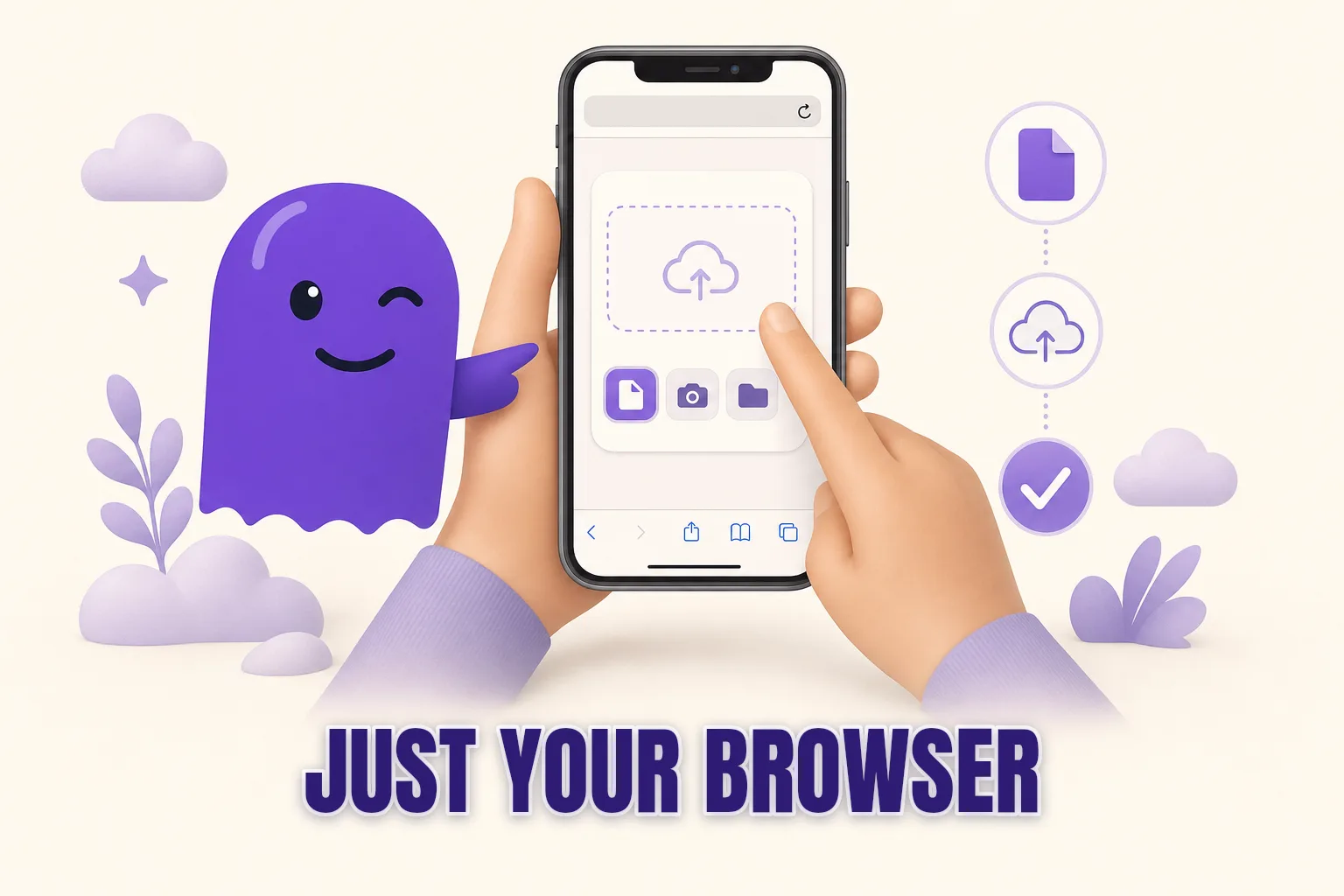
If you are looking for an Instagram unfollower tracker for iPhone that does not require installing a new app, the answer is simpler than most people expect: your own Instagram data export and a browser. No App Store download, no Instagram login handed to a third party — just your existing Files app and hooleft.me running in Safari.
Here is how to do the whole thing from your phone.
Why most App Store unfollower apps are worth skipping on iPhone
Searching the App Store for "Instagram unfollower" returns a long list of results. Most of them ask you to log in with your Instagram account before they show you anything. That login is not just for authentication — it is a session token the app can use to read your contacts, your DMs, your saved posts, and the rest of your account, well beyond the follower list you actually wanted.
Apps that require an Instagram login are in a category generally called password-based trackers. They use your session to pull live data from Instagram's servers. Instagram watches for automated access of this kind and has suspended accounts linked to it. The risk is real, and the App Store placement does not make an app safe.
The data-export route avoids the problem entirely. You download a file that Instagram produces for you, hand it to a tool, and close the tab. Nothing stays connected to your account after that. The post on the safest way to check Instagram unfollowers explains why this distinction matters in more detail.
What the browser-based route looks like
Instagram lets you request a copy of your own account data. This archive includes a complete, timestamped list of everyone who follows you and everyone you follow. A tool like hooleft.me reads that file and shows you who appears in your following list but not in your followers list — the accounts that stopped following you, or never followed you back.
From an iPhone, the entire process lives in four places you already have:
- The Instagram app, to request the export
- Your email app, to receive the download link
- Safari, to download the ZIP file and open hooleft.me
- The Files app, where the ZIP lands automatically
No App Store install required at any step.
Step 1: Request your Instagram data export
Open the Instagram app on your iPhone. Go to your profile, tap the menu icon in the top right corner, and choose Settings and privacy. Scroll down to Your activity, then tap Download your information, then Request a download.
On the screens that follow:
- Choose the account you want if you have more than one linked.
- Tap Some of your information.
- Check the box next to Followers and following.
- Scroll down and tap Next.
- Choose JSON as the format — not HTML. JSON is what hooleft.me parses.
- Choose All time for the date range so you get the complete list.
- Tap Submit request.
Instagram will email you when the file is ready. For most accounts the wait is between 30 minutes and a few hours. Accounts with a large volume of media can take longer — the post on how long Instagram data exports take gives a realistic sense of the range.
Step 2: Download the ZIP file in Safari
When the email arrives, open it and tap the download link. Safari opens the link and the ZIP file downloads automatically to the Downloads folder inside your Files app. You do not need to do anything special — Safari handles the download in the background while you wait.
If the link opens in another browser or app instead of Safari, copy the link address and paste it into the Safari address bar manually. Some mail apps intercept links that way.
If the file does not start downloading immediately, try long-pressing the link and choosing Download Linked File from the context menu.
Step 3: Upload to hooleft.me in Safari
Open Safari on your iPhone and go to hooleft.me. The upload area on the homepage accepts ZIP files directly — you do not need to open or extract the file first.
Tap the upload button, choose Files when the sheet appears, navigate to your Downloads folder, and select the Instagram ZIP. hooleft.me reads the file on your device and shows your unfollowers and non-followers within a few seconds.
hooleft.me does not require your Instagram password at any point. The comparison happens from the file you upload, not from a live connection to your account.
If you have used hooleft.me before and saved a previous snapshot, you can compare your current export against the earlier one to see exactly who left in the time between. This snapshot history is part of the Pro plan.
What about opening the ZIP in the Files app yourself?
If you want to look at the raw files first, the Files app handles ZIP extraction natively on iOS. Long-press the ZIP file and choose Extract to unzip it in place. Inside you will find a folder called connections/followers_and_following/ containing JSON files with your follower and following data.
Reading those files on a phone screen to find who unfollowed you is genuinely difficult — the timestamps are in Unix format, the entries are not sorted in any useful order, and comparing two files manually on a small display requires a lot of back-and-forth. The Safari route through hooleft.me takes a fraction of the time.
Comparison: App Store app vs browser-based on iPhone
| Approach | Instagram login required | Account risk | Needs App Store install | Works in Safari | Cost |
|---|---|---|---|---|---|
| App Store password app | Yes | High (session access) | Yes | No | $3-15/month |
| DIY export + manual JSON reading | No | None | No (Files app built-in) | Text viewer only | Free (your time) |
| hooleft.me in Safari | No | None | No | Yes | Free tier + Pro |
The meaningful difference is not price — it is what you hand over. An App Store app that requires an Instagram login holds a session token with broad account access. hooleft.me receives one file, reads it, and the session ends. The comparison the Instagram unfollower apps without login post covers broadly holds on iPhone just as it does on desktop.
A few things that can interfere on iPhone
Most uploads go through without issue, but a few iOS-specific situations are worth knowing about:
iCloud Private Relay: If you have iCloud Private Relay turned on, most sites — including hooleft.me — work normally. If you see an unexpected connection error, you can try turning Private Relay off temporarily in Settings → Apple ID → iCloud → Private Relay, then retry the upload.
Low Storage: If your iPhone has very little free storage, the ZIP may fail to download fully. Check that you have at least a few hundred megabytes free before starting. You can delete the ZIP from Downloads after uploading.
Partial download: Instagram sometimes sends the download link while the file is still being prepared. If the ZIP appears corrupted or the upload fails with an error, wait 10-15 minutes and try downloading the link from your email again.
FAQ
Can I check who unfollowed me on Instagram from an iPhone without installing an app?
Yes. Request your Instagram data export in the Instagram app, download the ZIP in Safari when the email arrives, and upload it to hooleft.me. The whole process runs in your browser — nothing to install from the App Store.
Do I need to unzip the Instagram file before uploading to hooleft.me?
No. hooleft.me reads the ZIP directly. Upload the file as it arrives in your Downloads folder without extracting it first.
Is it safe to upload my Instagram data export from my iPhone?
Your Instagram data export contains your follower and following lists with timestamps — not your password, private messages, or payment details. hooleft.me reads these files on your device without storing the raw export permanently.
Why should I choose JSON format when requesting my data?
JSON is the format tools like hooleft.me are built to read. The HTML option produces styled web pages designed for human reading, not for import or comparison. If you requested HTML by mistake, you will need to submit a new request and wait again.
How long does the Instagram data export take?
Usually between 30 minutes and a few hours for most accounts. The wait is the same whether you requested from an iPhone or a desktop — Instagram prepares the file on its servers, and your device is only involved when you open the download link.
The short path from your iPhone
The route from "I want to know who unfollowed me" to an actual answer is three steps on an iPhone: request the export, download the ZIP when the email arrives, and upload it to hooleft.me in Safari. No app to install, no Instagram login shared with a third party, no credit card required to see your first results.
For most accounts, the active time is under five minutes. The only wait is for Instagram to prepare the file — and once it arrives, the answer is a few taps away.
Related
Does Unfollowing Someone on Instagram Delete Likes?
Unfollowing someone on Instagram does not delete your past likes. Your interaction history stays exactly as it was. Here is what actually changes.
How to Find Inactive Followers on Instagram (Step by Step)
Inactive followers quietly inflate your count without ever engaging. Here's how to find them on Instagram using your own data, calmly and without an app.
How to Hide Your Following List on Instagram
The most complete option for hiding your Instagram following list is switching to a private account. Here is what that covers, what it does not, and what else to know.
See who left.
hooleft.me compares your own Instagram export and names the accounts that stopped following you. No password, and no card to start. Pro is $49 a year for the full list and snapshot history.
Start free