Instagram "Download Your Information" vs Data Export
Both names refer to the same process. Here is what each label means, where the menu lives in 2026, and which format to request for your follower data.
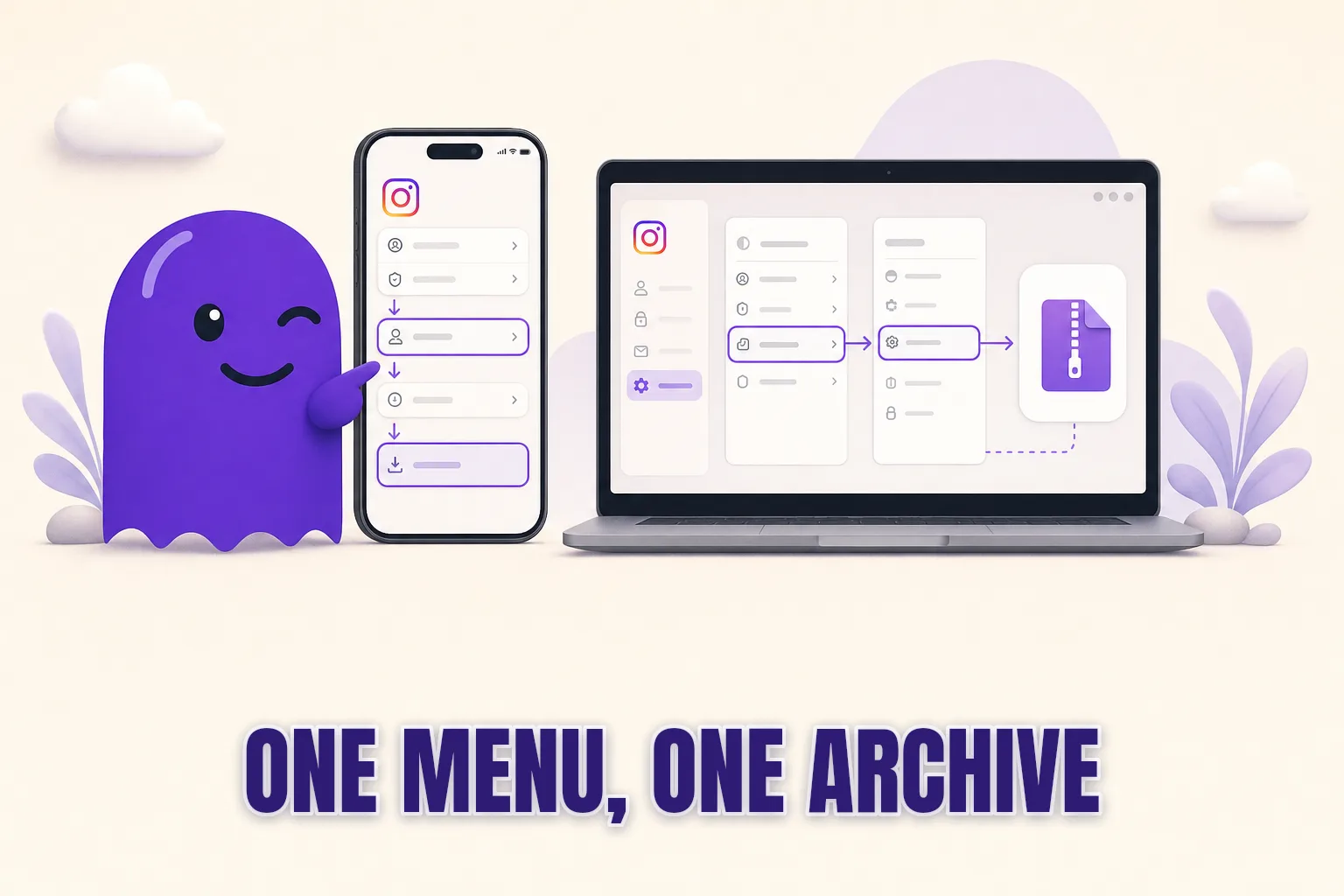
If you have searched for "Instagram Download Your Information" and also come across articles that call it the "Instagram data export," you may have wondered whether these are two separate features. They are not. Both names refer to the same process — Meta has just applied different labels to it depending on the app version, region, and year.
The underlying action is identical: you ask Instagram for a copy of your account data, Instagram packages it into a ZIP archive, and you download it. The name shown in the menu is the only thing that changes.
Why Meta uses so many different names
Instagram introduced the data download feature in 2018, partly in response to GDPR requirements. The first version was labeled "Download Your Data" inside the app. That changed to "Download Your Information" in later app updates, which is the phrase most users search for today.
When Meta started merging Instagram, Facebook, and Threads privacy controls under the unified Accounts Centre, the path changed again. Depending on which version of the app you have installed, you may see "Transfer or Download Your Information," "Download a copy of what you have shared on Instagram," or simply a direct link under "Your information and permissions."
The Instagram Help Center documentation refers to the whole thing as the "data export" or "data download" — which is the phrase that shows up in most third-party guides and tools like hooleft.me.
The result is that a reader following a tutorial from last year may be searching for a menu item that has since been renamed. The destination is the same; only the signpost has moved.
Where to find the export request in 2026
On mobile (iOS and Android):
- Open the Instagram app and tap your profile photo.
- Tap the three-line menu icon, then Settings and privacy.
- Tap Accounts Centre near the bottom of the page.
- Tap Your information and permissions.
- Tap Download your information.
- Select your Instagram account from the list.
On desktop (the Instagram website):
- Click your profile photo in the top-right corner.
- Click Settings.
- Click Your activity in the left column.
- Click Download your information.
Both paths arrive at the same form. If you only see Facebook listed in Accounts Centre, look for a small "See more" or "Add account" option — your Instagram account may need to be selected separately on the form itself.
The one choice that actually matters: JSON or HTML
Before you submit the request, you will be asked to choose a file format. This is the only decision that has a real consequence for what you can do with the archive.
HTML produces files you can open in any web browser. Your followers list appears as a page of links. This is readable for humans but cannot be processed by any upload tool.
JSON produces structured data files. They are harder to read by hand but are the format that every follower-comparison tool — including hooleft.me — requires.
If your goal is to see who unfollowed you, request JSON. The most common mistake in this process is requesting HTML, waiting hours for the archive to arrive, and then finding that the upload form cannot parse it. At that point you would need to make a second request and wait again.
If you already have an HTML export and are weighing whether to re-request, the post on Instagram data export HTML vs JSON formats explains the full difference and helps you decide.
What the follower files look like inside the archive
A JSON export arrives as a ZIP file. Inside it, the follower and following data lives in a folder called connections/followers_and_following/. The two files you need are:
followers_1.json— a list of every account currently following you, each with a Unix timestamp showing when they followed.following.json— a list of every account you follow, also with timestamps.
Accounts that appear in following.json but not in followers_1.json are people you follow who do not follow you back. Accounts that were in a previous export's followers_1.json but are absent from a newer one are people who left since you last checked.
For a full breakdown of the archive structure and where each file sits, the guide to which file in the Instagram data download has follower information walks through the folders in detail.
hooleft.me uses only the follower and following files. Everything else in the archive — your messages, photos, story metadata, activity log — stays on your device.
Your options for reading the follower data
Once you have the JSON archive, there are a few ways to identify who stopped following you.
| Method | What it involves | Time needed | Cost |
|---|---|---|---|
| Manual JSON comparison | Open both files in a text editor and scan for names that changed | 30-120 min | Free (your time) |
| Spreadsheet diff | Copy both lists into a spreadsheet and use a VLOOKUP to find mismatches | 20-60 min | Free (your time) |
| hooleft.me | Upload the ZIP — results appear in seconds, visual and sortable | Under 1 min | Free tier + Pro |
The manual route is feasible for small accounts. For anyone following or being followed by hundreds of people, the spreadsheet comparison becomes tedious quickly, and the JSON approach requires comfortable familiarity with data files.
hooleft.me reads both files automatically, compares them, and displays the accounts that follow you back alongside those that do not. The free tier shows the first three results with no card required; a Pro account shows the full list and stores snapshot history so you can compare across exports over time.
Frequently asked questions
Is "Download Your Information" the same as the Instagram data export?
Yes. Both phrases refer to the same request process. "Download Your Information" was the original label; newer app versions use "Transfer or Download Your Information" or a unified Accounts Centre link. They all produce the same ZIP archive.
Which format should I choose — HTML or JSON?
Choose JSON if you plan to use hooleft.me or any other upload tool. HTML is human-readable in a browser but cannot be parsed by follower-comparison tools.
How long does the export take to arrive?
Usually a few minutes to a few hours. Instagram can take up to 48 hours during busy periods. You receive an email with a download link when the archive is ready.
Where is the export option on the desktop site?
On the Instagram desktop site, click your profile photo, then Settings > Your activity > Download your information. The path on mobile goes through Settings and privacy > Accounts Centre > Your information and permissions.
Does the downloaded ZIP work with hooleft.me?
Yes. Upload the ZIP file directly to hooleft.me — no unzipping needed. The tool reads the follower and following files and shows you who stopped following you.
One request, one answer
The naming confusion around Instagram's export feature has sent a lot of people looking for the wrong menu. Now that you know "Download Your Information" and "data export" mean exactly the same thing — and that JSON is the format to choose — the path to seeing your follower changes is straightforward.
If you would rather hand off the file comparison entirely, hooleft.me handles it in seconds. Upload your ZIP file, and the tool shows you who stopped following you since your last export — no spreadsheet, no JSON wrangling, no password required. It is the safest way to check who unfollowed you on Instagram without giving any third-party app access to your account.
Related
Instagram Data Export Email Not Arriving? What to Check
Your Instagram data download email never came? Check these four causes — wrong inbox, spam folder, queued request, or file size — and how to fix each one.
How to Open Your Instagram Data Export on iPhone
Your Instagram data export arrives as a ZIP file. Here is how to open it on iPhone using the Files app, and the one-step shortcut that skips unzipping altogether.
Which File in the Instagram Export Has Your Followers
Your Instagram followers list lives in followers_1.json inside the connections/followers_and_following/ folder. Here is exactly where to find it and what to do with it.
Skip the JSON. See who left.
Upload the export as it came and hooleft.me does the comparing. No password, and no card to start. Pro is $49 a year for the full list and snapshot history.
Start freeNo export yet? How to request it from Instagram