Instagram Data Export: HTML or JSON? Which Format to Choose
When requesting your Instagram data archive, pick JSON not HTML. Here is why format matters for follower tracking and how to choose correctly before you wait.
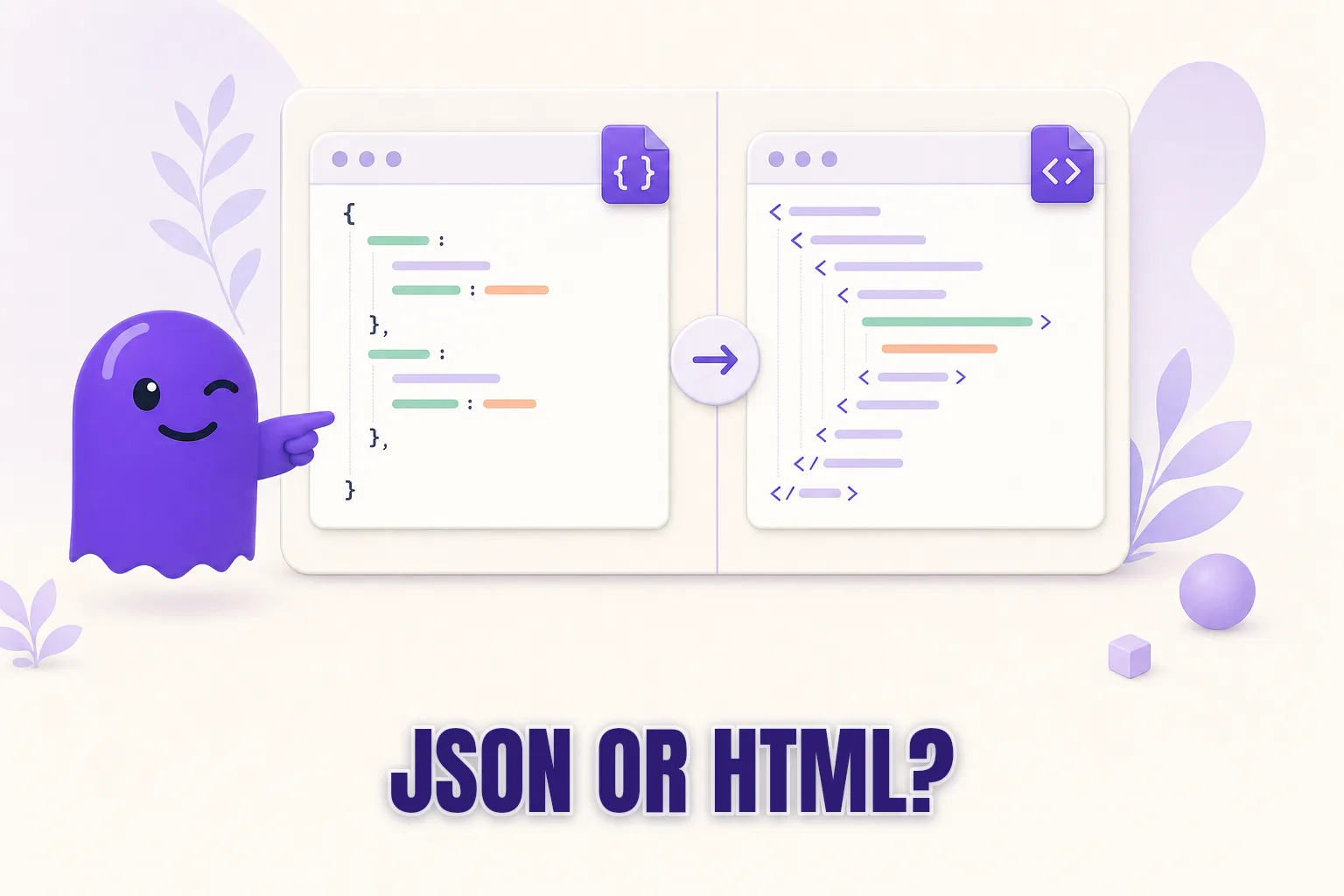
When you request your Instagram data, the first real decision is choosing a format: HTML or JSON. Pick HTML and you get a readable mini-website that no follower-tracking tool can process. Pick JSON and you get structured files that tools like hooleft.me can actually parse. If you want to find who unfollowed you, JSON is the correct choice, and selecting HTML by mistake means re-requesting and waiting all over again.
This post explains the practical difference, shows you which option to select, and covers what to do if you already downloaded the wrong format.
What the format choice actually controls
Both options export the same underlying data. Instagram bundles your followers list, following list, posts, comments, messages, and more regardless of which format you pick. The format only changes how that data is wrapped:
- HTML: Meta renders your data as a small static website. Each category (followers, posts, likes) becomes an HTML page you can open in any browser. It looks organized and is easy to browse. It is not useful for any tool trying to read the data automatically.
- JSON: The same data is written into plain text files using the JSON standard. Folders with names like
connections/followers_and_following/contain files likefollowers_1.jsonandfollowing.json. These files are what follower-tracking tools are built to read.
The choice happens once, before you submit the request. If you pick the wrong format, there is no conversion — you re-request and wait again.
Why HTML is the wrong choice for follower tracking
The HTML export sounds appealing because it is easy to browse. Open a file, see names and profile pictures, and everything looks tidy. The problem surfaces when you try to compare two lists or hand the archive to a tool.
HTML pages are designed for display, not for data processing. Follower and following information is embedded inside HTML markup, which means any tool reading it has to untangle page structure before it can even reach the names. Most tools, including hooleft.me, do not attempt this — they are built around the clean, predictable structure of JSON files.
If you upload an HTML archive to hooleft.me, the upload will not find your follower data. That is not a bug. The data is there, but it is not in a location or format the tool can parse.
For casual browsing — looking through old posts, reading your archived comments, downloading your photos — HTML is perfectly fine. For anything involving your follower list, choose JSON.
What JSON looks like inside the archive
Inside a JSON archive, follower data lives at a predictable path. After extracting the ZIP (or uploading it directly to hooleft.me without unzipping), the relevant files sit at:
connections/
  followers_and_following/
    followers_1.json
    following.json
Each file is a list of entries. Each entry includes a username, the display name at the time of the follow, and a Unix timestamp recording exactly when that person followed you — or when you followed them. hooleft.me reads those timestamps and uses them to produce a sorted list showing who left since your last snapshot.
The full guide to the Instagram data export file structure covers every folder in the archive if you want a complete map. For follower tracking, these two files are the ones that matter.
How to select JSON when requesting your archive
The format dropdown appears during the request flow and is easy to miss. Here is the current path, which works on both the mobile app and the website:
- Go to Settings and privacy. On mobile, tap your profile picture, then the three-line menu, then Settings. On the website, click your profile photo in the top-right corner, then Settings.
- Select "Your activity", then "Download your information", then "Request a download".
- On the next screen, look for the Format dropdown. In some regions it defaults to HTML. Change it to JSON.
- Set a date range. For a complete follower list, choose All time. A shorter window may produce an incomplete list.
- Set media quality to Low if you only want follower data — it keeps the archive small without losing any follower information.
- Submit. Instagram emails a download link when the archive is ready.
The wait can range from a few minutes to a couple of days depending on your account size and how busy Meta's export queue is. Download the ZIP as soon as the link arrives — it expires after a few days. If the email never shows up, the post on what to do when your Instagram data download is not arriving covers the most common causes.
What to do if you already downloaded HTML by mistake
It happens. The HTML option is sometimes the pre-selected default, and the format dropdown blends into the page. Your practical options:
Re-request in JSON. Go through the same request flow and choose JSON this time. Instagram does not impose a strict cooldown on how often you can request an archive — you can generally re-request immediately, though very frequent requests may slow the queue for your account.
Do not try to convert the files manually. The HTML and JSON archives are generated differently on Meta's servers. There is no reliable way to reformat HTML into JSON after the fact, and any attempt is more work than a fresh request.
Check the archive before assuming. Occasionally, Meta bundles both HTML and JSON data in the same download. Open the ZIP and look for a connections folder. If it is there and contains .json files, you have what you need even if the archive also contains HTML files. This is uncommon and cannot be counted on, but it is worth checking before re-requesting.
Choosing the right scope before you request
One detail that catches people off guard: the date range you select when requesting your archive limits the data returned. If you pick a range that starts after you created your account, Instagram only returns activity from that window — not your complete follower list from the beginning.
For a full follower comparison, select All time as the date range. If storage is a concern and you want only recent changes, a shorter window is fine, but the follower list will be partial.
The media quality setting has no effect on follower data. Choosing Low keeps the ZIP small and the wait short without removing anything relevant to tracking who follows or unfollows you.
Comparison: HTML, manual JSON, and hooleft.me
| Method | Format needed | Steps to read followers | Timestamps shown |
|---|---|---|---|
| Browse HTML in a browser | HTML | Open files manually | No |
| DIY JSON reading | JSON | Open text files, parse manually | Yes, in Unix format |
| hooleft.me | JSON | Upload ZIP | Yes, in human-readable format |
The DIY JSON route is doable if you are comfortable reading plain text files. For most people, converting a Unix timestamp like 1718300000 to a readable date by hand is more friction than the result is worth. hooleft.me does that conversion automatically — and shows you who left since your last upload, which requires no additional work on your part.
Using your JSON archive with hooleft.me
Once you have the JSON ZIP, drop it into hooleft.me directly. No unzipping required. hooleft.me reads followers_1.json and following.json, compares the two lists, and shows you:
- Everyone who follows you but you do not follow back
- Everyone you follow who does not follow you back
- When each person followed you, sorted by date
The free tier reveals your first three non-followers with no payment needed. Upgrading to Pro removes that limit, adds snapshot history so you can compare two exports taken at different times, and includes CSV export if you want the list in a spreadsheet.
If the upload reports an error or an empty list, the most common cause is accidentally uploading an HTML archive instead of JSON, or a partial archive where the date range was set too narrowly. The post on what to do when your Instagram followers file looks empty walks through each cause and how to fix it.
hooleft.me is built around the export-based approach precisely because it requires no password, connects to nothing on your account, and does not scrape Instagram. You hand it a file Instagram gave you. Choosing JSON is the one step that happens before any of that.
FAQ
Does the format choice matter for hooleft.me?
Yes. hooleft.me accepts the JSON format. If you downloaded HTML, you will need to re-request your archive in JSON before you can upload.
Can I convert my HTML Instagram export to JSON?
Not practically. Both formats contain the same data but are generated differently by Meta's servers. The simplest fix is to re-request the archive and choose JSON this time.
Will JSON format include all my Instagram data?
Yes. Both formats contain the same underlying data — posts, followers, following, messages, and more. JSON simply packages it as structured files that tools can read.
How do I know which format I already downloaded?
Open the archive. If you see .html files and folder names like logged_information, you chose HTML. If you see .json files inside folders like connections, you chose JSON.
Does the format choice affect how long the export takes?
Not meaningfully. Wait time depends on your account size and Meta's queue, not the output format.
Related
Should You Unfollow People Who Don't Follow Back?
Thinking about whether to unfollow people who don't follow back? A calm, honest framework for deciding — without drama, guilt, or ratio anxiety.
When to Audit Your Instagram Followers (and How Often)
A calm guide to knowing when your follower list needs a review — and the fastest way to run it without losing an afternoon.
Why Did People Unfollow Me on Instagram? (A Calm Answer)
If you've watched your follower count drop and felt the sting, here's the honest answer: it's almost never personal. The real reasons, gently explained.
Skip the JSON. See who left.
Upload the export as it came and hooleft.me does the comparing. No password, and no card to start. Pro is $49 a year for the full list and snapshot history.
Start freeNo export yet? How to request it from Instagram