Instagram Data Export Missing Following List: What to Do
If your Instagram data export arrived without a following list, here are the four most common causes and how to get both files needed for the comparison.
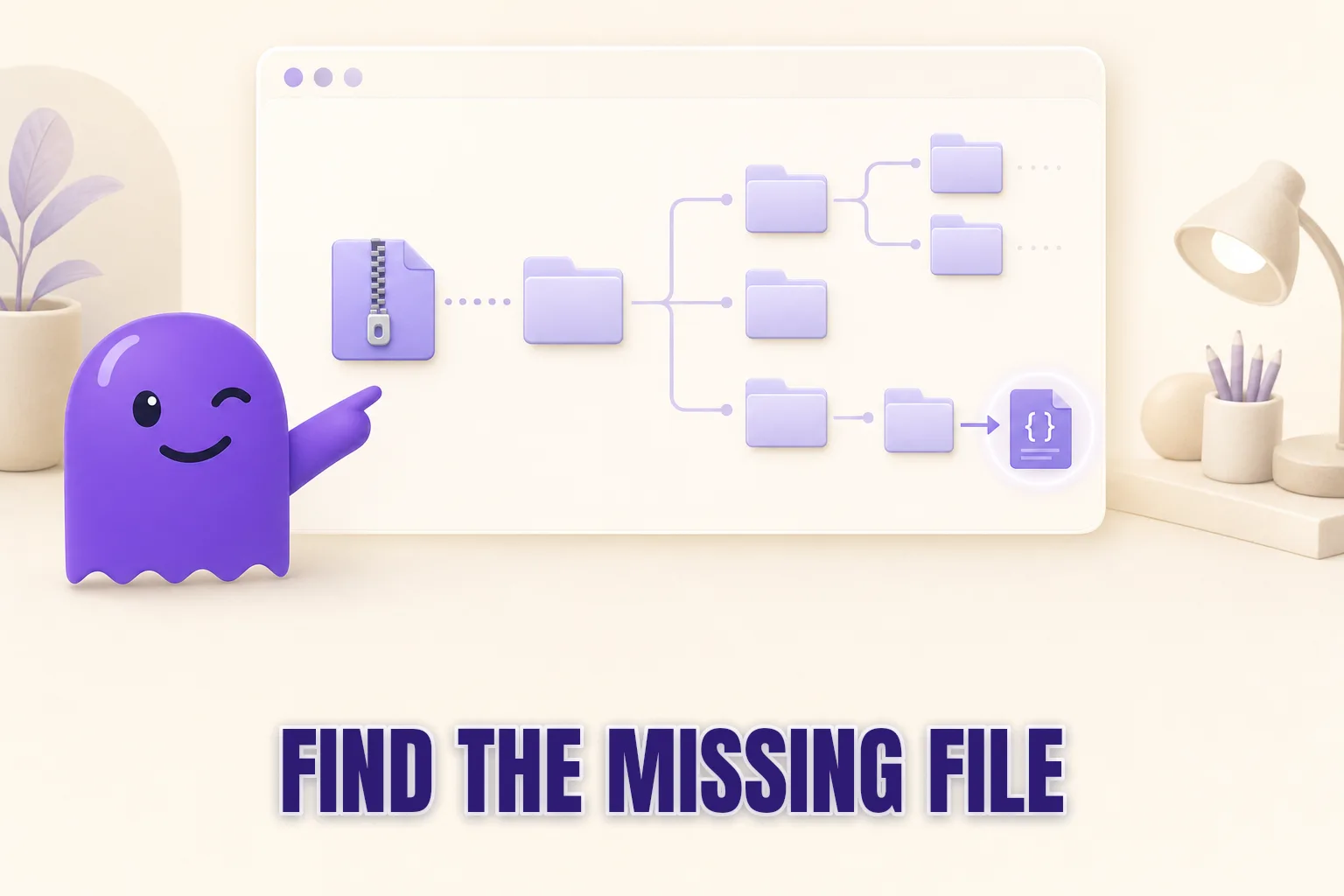
Your Instagram data export arrived, you unzipped it, and something looks wrong: the following list is not there. This matters because finding who is not following you back is a comparison between two lists — the accounts you follow and the accounts who follow you. Without the following list, the comparison cannot run, and any unfollower tool (including hooleft.me) will return an empty result. This post walks through the four most common reasons the following list goes missing and what to fix in each case.
Why both files are required
The Instagram data export contains two separate files for follower relationships. The followers file — typically named followers_1.json, sometimes split into multiple numbered files for large accounts — records the accounts that follow you. The following file — following.json — records the accounts you follow.
Finding non-followers is a subtraction problem: start with everyone you follow, remove everyone who follows you back, and what remains is the list of people who do not follow you. If following.json is absent, there is no starting list to work from, and the result is empty regardless of what the followers file contains.
The good news: the following list is almost never genuinely absent from an export. It is almost always misplaced, in the wrong format, or excluded by a date-range setting you can correct by re-requesting. Each of the four causes below has a direct fix.
The four most common causes
1. The date range was set too narrowly
Instagram's "Download your information" request form includes an optional date range field. If you set that range to anything other than "All time" — for example "Last 30 days" or a custom range that starts after you created the account — the following list is often excluded from or truncated in the export. Instagram interprets a short date range as a request for activity within that window, and your current following list is treated as historical account data rather than recent activity.
Fix: go back to the export request form, set the date range to "All time", and submit a new request. The new archive will include the complete following list.
2. You chose HTML format instead of JSON
When requesting a download, Instagram offers two format options: JSON and HTML. The HTML export wraps your data in browser-readable web pages, but the follower and following information is split across many nested HTML files with no single summary file. In practice, finding and comparing two HTML lists manually is difficult enough that most people give up — and some export versions omit a clean following.html file altogether.
Fix: re-request and select JSON format. The complete step-by-step guide for requesting the Instagram data export shows exactly where the format selector appears in the current interface.
3. The file is in a subfolder, not the archive root
This is the most common source of confusion. When you unzip the Instagram archive, the top-level folder contains several subdirectories: media, messages, ads_information, and connections, among others. Many people look at the root-level contents, see only those directory names, and conclude the follower data is missing.
The following list lives at connections/followers_and_following/following.json — two levels deep, not at the root. Open the ZIP file, navigate into the connections folder, then into followers_and_following, and both following.json and followers_1.json should be there.
For more detail on exactly which files to look for and what they contain, the post on which file in the Instagram data download has your followers covers every path.
4. You received a partial export or multiple ZIPs
Accounts with a long history, many posts, or a large following count sometimes receive the export split across multiple ZIP files. Instagram sends a separate download link for each part, and the links appear in the same email or in the app notification. The following list may be in a second or third archive rather than the first one you downloaded.
Check the original download email carefully. If there are multiple download buttons or links, each points to a different section of the export. Download all parts and check connections/followers_and_following/ inside each ZIP before concluding the file is absent.
How to re-request the export with the correct settings
If fixing any of the above requires a fresh export, the process is straightforward. Re-requesting carries no penalty and does not affect your account.
- On Instagram (web or mobile), go to Settings > Your activity > Download your information. On some versions of the app it appears under Accounts Center > Your information and permissions > Download your information.
- Select the Instagram account you want.
- Choose Some of your information and select the follower and following categories — or choose All available information to get everything.
- Set the format to JSON.
- Set the date range to All time.
- If you want the export to arrive faster, choose a lower media quality — this only affects photo resolution and has no impact on the follower data files.
- Tap or click Create files.
Instagram emails a link when the archive is ready. Most accounts receive it within a few hours; accounts with very large histories can take up to 48 hours.
Comparing options once you have the correct files
With both followers_1.json and following.json in hand, you can run the comparison yourself or upload the archive to a tool. Here is what each approach involves:
| Approach | What you do | Time | Complexity |
|---|---|---|---|
| Manual JSON comparison | Navigate to connections/followers_and_following/, open both files in a text editor or viewer, compare two arrays by eye | 20-60 min | High — requires comfortable reading of JSON |
| Re-request and retry | Request with correct settings, wait for delivery, navigate the subfolder again | 1-48h wait + navigation | Low-medium |
| hooleft.me | Upload the ZIP — it locates both files automatically, no subfolder navigation required | Seconds | None |
The safest way to check Instagram unfollowers is always from your own export data. That is true whether you do the comparison by hand or use a tool to read the archive for you.
If spending time navigating ZIP subfolders and reading raw JSON is not appealing, hooleft.me handles the file-hunting automatically. You drop in the archive and the comparison runs — it finds following.json on its own regardless of which subfolder Instagram placed it in. The free tier shows the first three results with no payment required.
FAQ
Where is the following list in the Instagram data export?
In a JSON-format export, the following list lives at connections/followers_and_following/following.json inside the ZIP archive. It is not in the top-level folder. Open the connections directory, then followers_and_following, and the file will be there.
Why is my Instagram data export missing the following list?
The four most common reasons: the date range was set too narrowly when requesting, you selected HTML format instead of JSON, you are looking in the top-level folder rather than connections/followers_and_following/, or your export came as multiple ZIPs and the following list is in a different one.
Do I need both the followers and following list?
Yes. Finding who does not follow you back requires comparing who you follow against who follows you. Without the following list, the comparison produces no results.
Can I re-request the export if a file is missing?
Yes, with no penalty. Return to the "Download your information" setting, choose JSON format, set the date range to All time, and submit a new request. The new archive is independent of the old one.
Does hooleft.me work if my following list seems missing?
hooleft.me locates following.json automatically from wherever Instagram placed it inside the archive. If the file is present in the ZIP — even inside a subfolder — it will be found. If the file is genuinely absent because the export used HTML format or a narrow date range, re-requesting in JSON with All time set before uploading resolves it.
One last thing
A missing following list in your Instagram export is almost always a settings or navigation issue, not a sign that the data does not exist. Request the archive in JSON format for All time, look inside connections/followers_and_following/, and both lists should be present.
Once you have them, the comparison runs in seconds at hooleft.me — or in a careful few minutes if you prefer to compare the JSON files yourself.
Related
Instagram Data Download Link Expired — Here Is What to Do
Instagram's data download link expires after about four days. Here is why it happens, how to re-request your archive quickly, and how to avoid the wait next time.
How Long Does the Instagram Data Export Take?
Instagram's data download usually arrives in under 4 hours but can take up to 48. Here's what affects the wait and what to do with the file when it lands.
How to Find Who Doesn't Follow You Back Without an App
Find out who doesn't follow you back on Instagram without downloading an app — use your own data export and hooleft.me to compare your lists safely and accurately.
Skip the JSON. See who left.
Upload the export as it came and hooleft.me does the comparing. No password, and no card to start. Pro is $49 a year for the full list and snapshot history.
Start freeNo export yet? How to request it from Instagram